• Facebook
  • Twitter
  • LinkedIn
  • Mail
  • Youtube
  • Advanced Product Search
  • Login / Register
  • My Account
  • Questions? | Email Us!
  • 480-948-5555
Interface
  • Industry Solutions
      • Industry Solutions

      • Our customers work in aerospace, automotive, energy, medical, industrial automation industries and test labs. If you are looking for inspiration or ideas, check out our solutions by industry.
      • Learn More
      • Aerospace
      • Agriculture
      • Automotive and Vehicle
      • Consumer Products
      • Education
      • Energy
      • Entertainment
      • Industrial Automation
      • Infrastructure
      • Internet of Things
      • Lifting
      • Manufacturing
      • Maritime
      • Medical and Healthcare
      • Natural Resources
      • Original Equipment Manufacturer
      • Test and Measurement
      • Weighing
  • Product Applications
      • Product Applications

      • Explore the diverse array of case studies, white papers, and application notes tailored to showcase the transformative potential of our products.
    • Applications Notes
      • Our skilled application engineers work with our customers to provide load, torque, multi-axis and force measurement solutions. Take a look at our library of Interface Application Notes.
    • Case Studies
      • Interface Case Studies are real examples of how our products are used for various applications, from packaging robots to launching rockets.
    • White Papers
      • Our technical white papers provide detailed insights, tips and expertise about various measurement technologies and use cases.
  • Products
    • Product Overview
      • Dynamic Product Categories
        • Complete SystemsComplete Systems
        • Load CellsLoad Cells
        • Mini Load CellsMini Load Cells
        • Load Button Load CellsLoad Button Load Cells
        • Multi-Axis SensorsMulti-Axis Sensors
        • Torque TransducersTorque Transducers
        • Load Pins, Tension Load Links, and Load ShacklesLoad Pins, Tension Load Links, and Load Shackles
        • InstrumentationInstrumentation
        • Digital InstrumentationDigital Instrumentation
        • WirelessWireless
        • Hazardous LocationsHazardous Locations
        • Calibration EquipmentCalibration Equipment
        • Load Cell SimulatorsLoad Cell Simulators
        • AccessoriesAccessories
        • G-SeriesG-Series
  • Product Guides
      • Interface Guides

      • Interface Guides are helpful resources to navigate our products. Our team has developed a series of instructional online tools that provide useful information about all the options available in our robust catalog.
      • Learn More
      • The Interface Selection Guide
      • Load Cell Selection Guide
      • Multi-Axis Sensor Selection Guide
      • Mini™ Load Cell Selection Guide
      • Torque Transducer Selection Guide
      • Torque Coupling Selection Guide
      • Instrumentation Selection Guide
      • Complete Systems
      • Wireless and Bluetooth® Selection Guide
      • Cable Assemblies Guide
      • Accessories Selection Guide
      • Calibration Equipment Selection Guide
      • Load Pin Configuration Submission
      • Weighing Solutions Guide
      • Lifting Solutions Guide
      • Data AQ Pack Guide
      • BlueDAQ Software Guide
      • Caris Codes Guides
      • Interface Load Cell Field Guide
      • ForceEDU
  • Services
    • Interface Technical Services
      • 50+ years of combined experience calibrating and repairing load cells and 100,000+ calibrations performed annually.
    • ISO 17025 Scope of Accreditation
      • Interface calibration certificates are the most complete in the industry.
    • Calibration Services
      • Interface provides calibration services on load cells and other force measurement devices from nearly any manufacturer.
    • Repair Services
      • Interface provides repair services on load cells and other force measurement devices from nearly any manufacturer. Repairs include a complete evaluation of the device prior to repair and calibration upon completion.
    • Load Cell Troubleshooting
      • Performance of a load cell force (or weigh) measurement system is dependent upon the integrity of the physical installation, correct interconnection of the components, proper performance of the basic components which make up the system, and calibration of the system.
  • Custom Solutions
      • Custom Solutions

      • Interface Custom Solutions empowers you to utilize our expert engineering, design and manufacturing teams to build custom force, torque and specialty products that are customized to meet your exact needs, with precision.
      • Learn More
      • Custom OEM Solutions
      • Custom Integrated Solutions
      • System Level Calibration
  • Support
    • Locate Reps and Distributors
      • Interface’s success is due to our global network and partnership with its representatives and distributors.
    • Catalogs and Brochures
      • Interface offers downloadable PDF catalogs and brochures, including product, industry, and service guides.
    • Installation and Operation Manuals
      • Find installation and operation manuals for load cells, torque, multi-axis, load pins, links, shackles, instrumentation.
    • Software and Drivers
      • Download drivers, software and mobile apps.
    • Electrical Wiring and Diagrams
      • Electrical selection chart, load cell cable and connector wiring diagrams and more.
    • Technical Library
      • Our technical library covers cable length effects, glossaries, system calibrations, and load cell troubleshooting resources.
    • ForceEDU
      • Welcome to Interface’s ForceEdu – your go-to resource for training and professional development of Interface’s products and more. Here, you’ll find a wealth of educational materials, including training videos, 101 articles, blogs, and brochures.
  • Company
      • Company Overview

      • Founded in 1968, Interface is a U.S. based, women-owned technology and manufacturing company of the world’s best load cells, headquartered in Scottsdale, Arizona.
      • Learn More
    • Interface Capabilities
      • Interface is the world’s trusted leader in technology, design, and manufacturing of force measurement solutions. We empower engineers around the world to measure force and performance at the highest degree.
    • Trade Shows and Events
      • Throughout the year and across the globe, Interface hosts virtual ForceLeaders events, local ForceLeaders Summits, exhibits at trade shows and presents at global conferences.
    • Careers
      • Our business encompasses many different functions and capabilities, allowing you to explore careers in various fields. You can discover engineering, finance, manufacturing, marketing, product development, sales, and more opportunities.
    • Certifications and Compliance
      • Interface designs and manufactures high-performance sensors and instrumentation, ensuring ISO-compliant quality for the test and measurement market. We’re dedicated to delivering precision, reliability, and superior quality in every product.
    • InterfaceIQ Podcast
      • Listen to the InterfaceIQ Podcast, hosted by Max Newton and Molly Moment. The podcast created for new listeners, engineers, and innovators who want to learn more about force measurement technology!
  • Blog
  • Menu Menu
  • 0Shopping Cart
You are here: Home1 / Products2 / Digital Instrumentation3 / Data Acquisition4 / BSC1-HD Single Channel PC Interface Module with Analog Output5

BSC1-HD Single Channel PC Interface Module with Analog Output

BSC1-HD Single Channel PC Interface Module with Analog Output

PRICING NOTICE

The pricing listed on our website is only for U.S. buyers and all pricing is subject to change without notice. Any inquiries for products from buyers outside of the U.S. will receive a quote and availability from the licensed distributor nearest your region. These prices will be based on product availability, currency conversions, markets, taxes, shipping costs, as well as local support.

BSC1-HD Single Channel PC Interface Module with Analog Output

Single Channel PC Interface Module

Get Your Free Quote

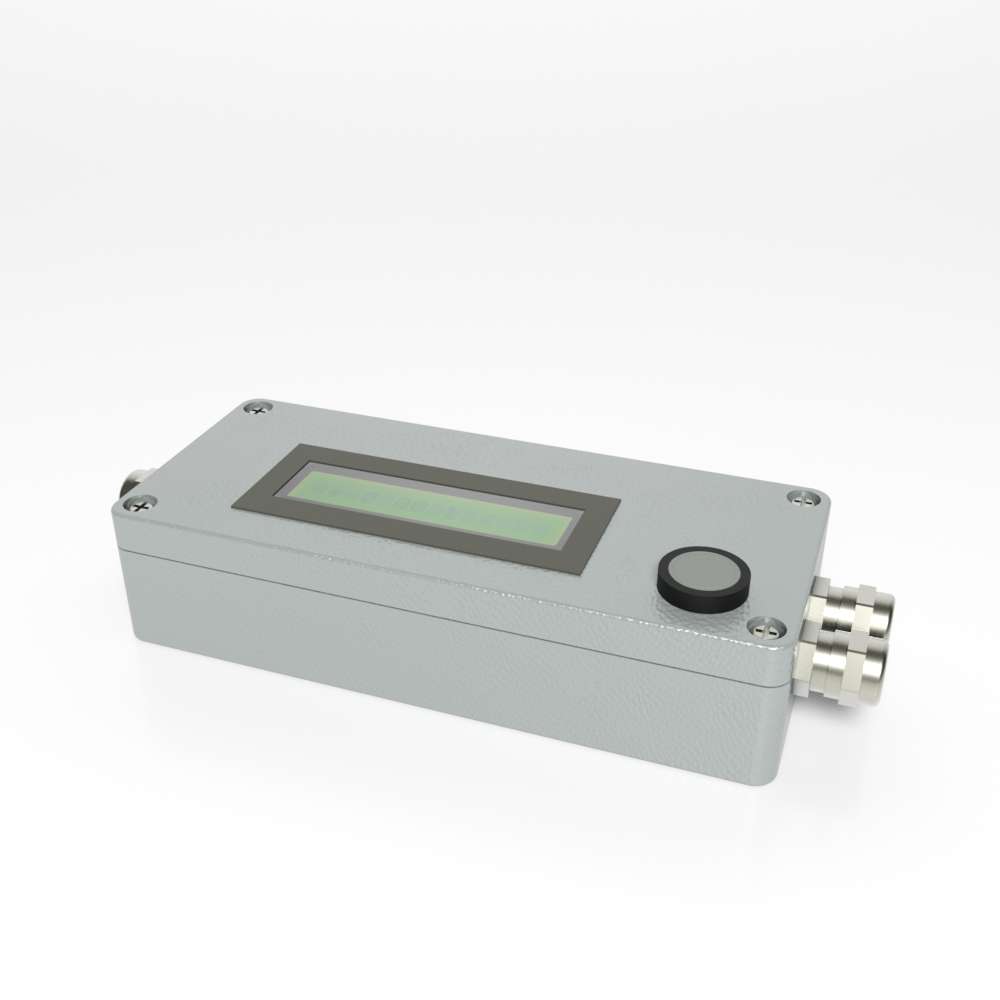
Model BSC1-HD Single Channel PC Interface Module with Analog Output is a single channel signal conditioner with both digital and analog input and output. The BSC1-HD also has optional RS232, RS422, and CANOpen protocols.


Product Downloads

Please login or register for Product Pricing and File Access

  • Data Sheet
  • BSC1-HD Operation Manual
  • BlueDAQ Software Manual
  • Software (BlueDAQ 1.51)

Model BSC1-HD Single Channel PC Interface Module with Analog Output is a single channel signal conditioner with both digital and analog input and output.

Please Login to view pricing and product downloads

Need a quote or looking to purchase this item?

Login, scroll to see your model descriptions and SKU part number, then use the Request for Quote button to submit your request.

Request a QuoteRequest a CAD File

Categories: Data Acquisition, Data Logging, Data Logging, Digital Instrumentation, Digital Output, Digital Output, Instrumentation, Quickship, Signal Conditioners, Signal Conditioners, USB Interface Modules Tag: quickship
  • Features and Benefits
  • Specifications
  • Dimensions
  • Connector Pin Diagram
  • Shipping Information
  • Product Video

Features and Benefits

  • 24-bit
  • mV/V input (+/-10mV/V) and Analog Input (0-10VDC)
  • Analog Output (standard +/-5V)
  • LCD Display (to 200,000 digits display resolution)
  • Compatible with Interface BlueDAQ Software
  • RS232, RS422 or Optional – CANOpen
  • Trigger input

Options

  • 4-20mA Output
  • 0-10V Output
  • CAN Open and +/-5V Output

Amplifier channel has a fixed gain settings and is not adjustable for specific load cell output signals. Because of this, the amplifier output will typically 0.5V per mV/V of load cell output.

Specifications

Specifications


U.S. dimensions and capacities are provided for conversion only. Standard products have International System of Units (SI) capacities and dimensions.

Dimensions

Dimensions


U.S. dimensions and capacities are provided for conversion only. Standard products have International System of Units (SI) capacities and dimensions.

Connector Pin Diagram

Pin Configuration


15-pin terminal block for the sensor connection

Terminal block 15 pole and 5 pole in BSC1-HD-OEM, BSC1-HD-ND, BSC1-HD and BSC1-HD-PM

15 POLE TERMINAL BLOCK IN BSC1-HD-OEM, BSC1-HD-ND, BSC1-HD AND BSC1-HD-PM
PIN NAME DESCRIPTION TIP
1 GNDB Supply Ground Connection for cable shield.
2 +Us + Bridge Sensor Supply The signals at terminals 2 - 7 are recorded by software in channel 0. Connection of sensors in 4- or 6-wire technology. Bridging between +Us and +UF as well as between -US and -UF are not necessary.
3 +UF + Sense for 6-Wire Technology
4 +UD + Differential Input
5 -UD - Differential Input
6 -UF - Sense for 6-Wire Technology
7 -US - Bridge Sensor Supply
8 UE Ground Analog Input/Output Analog input between UE and GNDA. The signals between UE and GNDA are recorded by software in channel 1. Analog output between UA and GNDA.
9 UA Analog Output ±5 V / Option 4-20mA
10 GNDA Ground Analog In/Output
11 SW1² Threshold Output No. 1 Open Collector (Open Emitter alternatively), galvanically isolated.
12 Tara¹ Tare Input Affects digital serial and Analog output.
13 SW2² Threshold Output No. 2 See Tip for SW1.
14 UB Supply Yoltage 12 - 24 VDC Connection for supply voltage.
15 GNDB Supply Ground
  1. In case of voltages above 3.4 V at this terminal, a tare adjustment is initiated. Offset adjustment is then done in the analog part of the BSC1-HD. In addition, the digital output is also set to zero.
  2. Threshold values are programmed via the RS 232 port.
5-PIN TERMINAL BLOCK FOR RS232 / RS422
PIN STANDARD CAN/CANopen DESCRIPTION
A GNDC GNDC Ground RS232 / RS422 Interface
B RX / RX- RX Data Connection RX for RS232 / RX- for RS422
C TX / TX- TX Data Connection TX for RS232 / TX- for RS422
D RX+ CAN_GND RX+ for RS422 Ground CANbus
E TX+ CAN_L TX+ for RS422 CAN Low
F NA CAN_H N/C CAN High

Backplate of the table case (BSC1-HD-DT)

Backplate BSC1-HD-DT

M8 plug connector for BSC1-HD-DT CANopen

In the version with CANopen Interface there are two additional M8 male / female connectors on the backplate.

PIN FUNCTION COLOR
1 CAN-H BROWN
2 CAN-L BLUE
3 GND BLACK

The CAN-Interface is galvanically isolated.

Side panel BSC1-HD-DT

Five 2mm plugs are arranged at the side panel. Two isolated threshold outputs and one input for the tare / set zero functions are available.

COLOR FUNCTION DESCRIPTION
BLACK SET ZERO INPUT Input voltage 9 - 30 Volts
GREEN THRESHOLD 1 CMOS relay outputs, isolated, 60 VDC, 40 VAC
YELLOW THRESHOLD 2 CMOS relay outputs, isolated, 60 VDC, 40 VAC

12-PIN TERMINAL BLOCK BSC1-HD-DT
PIN NAME DESCRIPTION TIP
1 SHIELDING Shield and GNDB Connect the cable shield here.
2 +US + Bridge Sensor Supply The signals at terminals 2..7 are acquired by software. Connection of sensors in 4- or 6-wire technology. Bridging between +Us and +UF as well as between -US and -UF are not necessary.
3 +UF + Sense for 6-Wire Technology
4 +UD + Differential Input
5 -UD - Differential Input
6 -UF - Sense for 6-Wire Technology
7 -US - Bridge Sensor Supply (GND)
8 -UD2 - Differential Input 2 To connect half- and quarter bridges, terminal 8 and 9 must be connected together. See connection scheme on p.5.
9 HB Completion for half bridge
10 QB120 Completion quarter bridge 120 Ohms For connection of quarter bridge, 120, 350 or 1000 Ohms.
11 QB350 Completion quarter bridge 350 Ohms
12 QB1000 Completion quarter bridge 1000 Ohms

Connection of 12-pole terminal block BSC1-HD-DT

Connection Scheme 12-Pin Terminal Block

Connection of Full-, Half- and Quarter bridge sensors to the 12-pole terminal block

15-Pin SUB-D Connector of the BSC1-HD-DT

CONNECTION OF SUB-D 15 PLUG
PIN NAME DESCRIPTION
1 SHIELDING Cable shield
2 GNDA Analog input ground
7 TARE Tare input / Trigger input
9 UE Analog input
10 UA Analog output
6 +US Positive bridge sensor supply
5 -US Negative bridge sensor supply
8 +UD Positive differential input
15 -UD Negative differential input
13 +UF Positive sense for 6-wire technology
12 -UF Negative sense for 6-wire technology
14 HB Completion for half bridge
11 QB120 Completion quarter bridge 120 Ohms
3 QB350 Completion quarter bridge 350 Ohms
4 QB1000 Completion quarter bridge 1000 Ohms


To connect half- and quarter bridges, pin 14 and pin 15 must be connected together. Quarter bridges are connected in 3-wire technology at pins 5, 8 12 14 and QB (3, 11 or 4).

Connection Diagram 15-Pin D-SUB Connector

Connection of Full-, Half- and Quarter bridge sensors to the 15-pole SUB-D connector

All ground connections are individually protected by interference suppressor inductors in the BSC1HD. Terminals GNDB are connected to the housing via interference suppression inductor. Currents above 1A between the terminals and the housing result in damage to the interference suppression inductor. Before connecting, please check whether housing, supply ground, the ground of your data acquisition system and your port are at the same potential.

Connection and start-up


Charging the integrated battery

The integrated rechargeable battery of the BSC1-HD-DT is charged via the DC socket 2.1 x 5.5 mm at the back of the device. The state of charge is indicated by the LED on the back of the device. When the battery is fully charged, the LED goes out or the brightness is reduced. The charging time is about 8 – 12 hours.

Connecting the sensor

A strain gage full bridge or a load cell is connected to the amplifier’s terminal block as shown below:

4- WIRE TECHNOLOGY 6-WIRE TECHNOLOGY
FUNCTION PIN FUNCTION PIN
+ SUPPLY 2 + SUPPLY 2
- SUPPLY 7 - SUPPLY 7
+ SIGNAL 4 + SIGNAL 4
- SIGNAL 5 - SIGNAL 5
+ SENSE 3
- SENSE 6

All cable shields should be connected to the metal of the cable entrance or to GND.

The supply voltage must be connected to the PINs 14 (+) and 15 (GND) of the BSC1-HDOEM, BSC1-HD-ND, BSC1-HD and the BSC1-HD-PM.

The Analog output transmits a signal which is proportional to the measured force. We offer the BSC1-HD with the following options: ±5 V, 0…10 V, or 4…20 mA current output. The output signal is present at the PINs 9 and10 (Ground).

The sensitivity of the amplifier can be changed by removing the Jumper „JP1“ from 2 mV/V) to 1 mV/V. The jumper „JP1“ is located on the circuit board, for more detailed information refer to the Strain Gage Bridge Amplifier BSC1-HD User’s Manual, Page 64.

Connecting the PINs 12 and 13 triggers a zero-point adjustment at the analog and digital outputs. The analog output delivers a voltage from 0 V or a current of 4mA. The system is then ready for measurements.

1) At the analog output the benefits of the 6-conductor technology are not supported.

Connecting the serial interface

If an RS 232 or RS422 port is used, the following connections should be set up to the PC:

BSC1-HD PIN Cable type 9-pin Sub-D-Pin (PC-side)
PIN FUNCTION FUNCTION Data Wire
A GND Interface Ground GND 5
B RX(-) Data Wire RX 3
C TX(-) Data Wire TX 2
D (RS422 Only) TX+ Data Wire TX+ -
E (RS422 Only) RX+ Data Wire RX+ -

The data cables RX and TX between the amplifier and the PC are crossed at the SUB-D connector of the BSC1-HD-PM.

The measuring values will be displayed on the PC while starting the supplied configuration program.

The measuring amplifier BSC1-HD-DT needs a fully connected null modem cable, which means crossing of RxD with TxD, RTS with CTS, and DCD+DSR with DTR also GND with GND (2 with 3, 7 with 8, 1+6 with 4 as well as 5 with 5).

Commissioning devices with CANopen interface

For devices with CANopen interface the changing of settings via USB port or via RS232 interface is blocked. These settings via USB or RS232 will be however possible only with the switch off of the CANopen interface.

To ensure the conformity with the CANopen protocol, the CANopen interface must be switched on in the factory state.

The switch off of the CANopen interface is possible with the program “GSV-Term”. You can find the corresponding point to switch-off the CANbus under this path: “2” (for the second side) –> “b” (for baud rate / CAN) –> “c” (for CANbus) –> “1” (for switch on/off). Please note the instructions ba-BSC1-HD CanOpen.pdf.

3 Pin Connector Plug / Socket M8

Connector plug and socket are 1:1 connected.

PIN FUNCTION BSCI-CAN WIRE COLOR
1 Transmit Data TxD / CAN_H 13 Brown
3 Receive Date RxD / CAN_L 12 Blue
4 GND 11 Black

Jumper for terminating resistor 120 Ohm

The photos show the position for the jumper. For closed jumper the terminating resistor of 120 Ohm is activated.

Jumper for terminating resistor for BSC1-HD-ND

Jumper for terminating resistor for BSC1-HD-DT

For more information visit Electrical Wiring Diagrams

Additional Information

Product Video

  • Features and Benefits
  • Specifications
  • Dimensions
  • Connector Pin Diagram
  • Shipping Information
  • Product Video

Features and Benefits

  • 24-bit
  • mV/V input (+/-10mV/V) and Analog Input (0-10VDC)
  • Analog Output (standard +/-5V)
  • LCD Display (to 200,000 digits display resolution)
  • Compatible with Interface BlueDAQ Software
  • RS232, RS422 or Optional – CANOpen
  • Trigger input

Options

  • 4-20mA Output
  • 0-10V Output
  • CAN Open and +/-5V Output

Amplifier channel has a fixed gain settings and is not adjustable for specific load cell output signals. Because of this, the amplifier output will typically 0.5V per mV/V of load cell output.

Specifications

Specifications


U.S. dimensions and capacities are provided for conversion only. Standard products have International System of Units (SI) capacities and dimensions.

Dimensions

Dimensions


U.S. dimensions and capacities are provided for conversion only. Standard products have International System of Units (SI) capacities and dimensions.

Connector Pin Diagram

Pin Configuration


15-pin terminal block for the sensor connection

Terminal block 15 pole and 5 pole in BSC1-HD-OEM, BSC1-HD-ND, BSC1-HD and BSC1-HD-PM

15 POLE TERMINAL BLOCK IN BSC1-HD-OEM, BSC1-HD-ND, BSC1-HD AND BSC1-HD-PM
PIN NAME DESCRIPTION TIP
1 GNDB Supply Ground Connection for cable shield.
2 +Us + Bridge Sensor Supply The signals at terminals 2 - 7 are recorded by software in channel 0. Connection of sensors in 4- or 6-wire technology. Bridging between +Us and +UF as well as between -US and -UF are not necessary.
3 +UF + Sense for 6-Wire Technology
4 +UD + Differential Input
5 -UD - Differential Input
6 -UF - Sense for 6-Wire Technology
7 -US - Bridge Sensor Supply
8 UE Ground Analog Input/Output Analog input between UE and GNDA. The signals between UE and GNDA are recorded by software in channel 1. Analog output between UA and GNDA.
9 UA Analog Output ±5 V / Option 4-20mA
10 GNDA Ground Analog In/Output
11 SW1² Threshold Output No. 1 Open Collector (Open Emitter alternatively), galvanically isolated.
12 Tara¹ Tare Input Affects digital serial and Analog output.
13 SW2² Threshold Output No. 2 See Tip for SW1.
14 UB Supply Yoltage 12 - 24 VDC Connection for supply voltage.
15 GNDB Supply Ground
  1. In case of voltages above 3.4 V at this terminal, a tare adjustment is initiated. Offset adjustment is then done in the analog part of the BSC1-HD. In addition, the digital output is also set to zero.
  2. Threshold values are programmed via the RS 232 port.
5-PIN TERMINAL BLOCK FOR RS232 / RS422
PIN STANDARD CAN/CANopen DESCRIPTION
A GNDC GNDC Ground RS232 / RS422 Interface
B RX / RX- RX Data Connection RX for RS232 / RX- for RS422
C TX / TX- TX Data Connection TX for RS232 / TX- for RS422
D RX+ CAN_GND RX+ for RS422 Ground CANbus
E TX+ CAN_L TX+ for RS422 CAN Low
F NA CAN_H N/C CAN High

Backplate of the table case (BSC1-HD-DT)

Backplate BSC1-HD-DT

M8 plug connector for BSC1-HD-DT CANopen

In the version with CANopen Interface there are two additional M8 male / female connectors on the backplate.

PIN FUNCTION COLOR
1 CAN-H BROWN
2 CAN-L BLUE
3 GND BLACK

The CAN-Interface is galvanically isolated.

Side panel BSC1-HD-DT

Five 2mm plugs are arranged at the side panel. Two isolated threshold outputs and one input for the tare / set zero functions are available.

COLOR FUNCTION DESCRIPTION
BLACK SET ZERO INPUT Input voltage 9 - 30 Volts
GREEN THRESHOLD 1 CMOS relay outputs, isolated, 60 VDC, 40 VAC
YELLOW THRESHOLD 2 CMOS relay outputs, isolated, 60 VDC, 40 VAC

12-PIN TERMINAL BLOCK BSC1-HD-DT
PIN NAME DESCRIPTION TIP
1 SHIELDING Shield and GNDB Connect the cable shield here.
2 +US + Bridge Sensor Supply The signals at terminals 2..7 are acquired by software. Connection of sensors in 4- or 6-wire technology. Bridging between +Us and +UF as well as between -US and -UF are not necessary.
3 +UF + Sense for 6-Wire Technology
4 +UD + Differential Input
5 -UD - Differential Input
6 -UF - Sense for 6-Wire Technology
7 -US - Bridge Sensor Supply (GND)
8 -UD2 - Differential Input 2 To connect half- and quarter bridges, terminal 8 and 9 must be connected together. See connection scheme on p.5.
9 HB Completion for half bridge
10 QB120 Completion quarter bridge 120 Ohms For connection of quarter bridge, 120, 350 or 1000 Ohms.
11 QB350 Completion quarter bridge 350 Ohms
12 QB1000 Completion quarter bridge 1000 Ohms

Connection of 12-pole terminal block BSC1-HD-DT

Connection Scheme 12-Pin Terminal Block

Connection of Full-, Half- and Quarter bridge sensors to the 12-pole terminal block

15-Pin SUB-D Connector of the BSC1-HD-DT

CONNECTION OF SUB-D 15 PLUG
PIN NAME DESCRIPTION
1 SHIELDING Cable shield
2 GNDA Analog input ground
7 TARE Tare input / Trigger input
9 UE Analog input
10 UA Analog output
6 +US Positive bridge sensor supply
5 -US Negative bridge sensor supply
8 +UD Positive differential input
15 -UD Negative differential input
13 +UF Positive sense for 6-wire technology
12 -UF Negative sense for 6-wire technology
14 HB Completion for half bridge
11 QB120 Completion quarter bridge 120 Ohms
3 QB350 Completion quarter bridge 350 Ohms
4 QB1000 Completion quarter bridge 1000 Ohms


To connect half- and quarter bridges, pin 14 and pin 15 must be connected together. Quarter bridges are connected in 3-wire technology at pins 5, 8 12 14 and QB (3, 11 or 4).

Connection Diagram 15-Pin D-SUB Connector

Connection of Full-, Half- and Quarter bridge sensors to the 15-pole SUB-D connector

All ground connections are individually protected by interference suppressor inductors in the BSC1HD. Terminals GNDB are connected to the housing via interference suppression inductor. Currents above 1A between the terminals and the housing result in damage to the interference suppression inductor. Before connecting, please check whether housing, supply ground, the ground of your data acquisition system and your port are at the same potential.

Connection and start-up


Charging the integrated battery

The integrated rechargeable battery of the BSC1-HD-DT is charged via the DC socket 2.1 x 5.5 mm at the back of the device. The state of charge is indicated by the LED on the back of the device. When the battery is fully charged, the LED goes out or the brightness is reduced. The charging time is about 8 – 12 hours.

Connecting the sensor

A strain gage full bridge or a load cell is connected to the amplifier’s terminal block as shown below:

4- WIRE TECHNOLOGY 6-WIRE TECHNOLOGY
FUNCTION PIN FUNCTION PIN
+ SUPPLY 2 + SUPPLY 2
- SUPPLY 7 - SUPPLY 7
+ SIGNAL 4 + SIGNAL 4
- SIGNAL 5 - SIGNAL 5
+ SENSE 3
- SENSE 6

All cable shields should be connected to the metal of the cable entrance or to GND.

The supply voltage must be connected to the PINs 14 (+) and 15 (GND) of the BSC1-HDOEM, BSC1-HD-ND, BSC1-HD and the BSC1-HD-PM.

The Analog output transmits a signal which is proportional to the measured force. We offer the BSC1-HD with the following options: ±5 V, 0…10 V, or 4…20 mA current output. The output signal is present at the PINs 9 and10 (Ground).

The sensitivity of the amplifier can be changed by removing the Jumper „JP1“ from 2 mV/V) to 1 mV/V. The jumper „JP1“ is located on the circuit board, for more detailed information refer to the Strain Gage Bridge Amplifier BSC1-HD User’s Manual, Page 64.

Connecting the PINs 12 and 13 triggers a zero-point adjustment at the analog and digital outputs. The analog output delivers a voltage from 0 V or a current of 4mA. The system is then ready for measurements.

1) At the analog output the benefits of the 6-conductor technology are not supported.

Connecting the serial interface

If an RS 232 or RS422 port is used, the following connections should be set up to the PC:

BSC1-HD PIN Cable type 9-pin Sub-D-Pin (PC-side)
PIN FUNCTION FUNCTION Data Wire
A GND Interface Ground GND 5
B RX(-) Data Wire RX 3
C TX(-) Data Wire TX 2
D (RS422 Only) TX+ Data Wire TX+ -
E (RS422 Only) RX+ Data Wire RX+ -

The data cables RX and TX between the amplifier and the PC are crossed at the SUB-D connector of the BSC1-HD-PM.

The measuring values will be displayed on the PC while starting the supplied configuration program.

The measuring amplifier BSC1-HD-DT needs a fully connected null modem cable, which means crossing of RxD with TxD, RTS with CTS, and DCD+DSR with DTR also GND with GND (2 with 3, 7 with 8, 1+6 with 4 as well as 5 with 5).

Commissioning devices with CANopen interface

For devices with CANopen interface the changing of settings via USB port or via RS232 interface is blocked. These settings via USB or RS232 will be however possible only with the switch off of the CANopen interface.

To ensure the conformity with the CANopen protocol, the CANopen interface must be switched on in the factory state.

The switch off of the CANopen interface is possible with the program “GSV-Term”. You can find the corresponding point to switch-off the CANbus under this path: “2” (for the second side) –> “b” (for baud rate / CAN) –> “c” (for CANbus) –> “1” (for switch on/off). Please note the instructions ba-BSC1-HD CanOpen.pdf.

3 Pin Connector Plug / Socket M8

Connector plug and socket are 1:1 connected.

PIN FUNCTION BSCI-CAN WIRE COLOR
1 Transmit Data TxD / CAN_H 13 Brown
3 Receive Date RxD / CAN_L 12 Blue
4 GND 11 Black

Jumper for terminating resistor 120 Ohm

The photos show the position for the jumper. For closed jumper the terminating resistor of 120 Ohm is activated.

Jumper for terminating resistor for BSC1-HD-ND

Jumper for terminating resistor for BSC1-HD-DT

For more information visit Electrical Wiring Diagrams
Additional Information

Product Video

Additional Products

  • 9890 STRAIN GAGE, LOAD CELL, & MV/V INDICATOR

    9890 Strain Gage, Load Cell, and mV/V Indicator

    Buy Now!Please Login to view pricing and product downloads
    Read more
  • 1280 Programmable Weight Indicator and Controller

    1280 Programmable Weight Indicator and Controller

    Buy Now!Please Login to view pricing and product downloads
    Read more
  • High Speed High Performance TEDS Ready Indicator

    9870 High-Speed High Performance TEDS Ready Indicator

    Buy Now!Please Login to view pricing and product downloads
    Read more Show Details
  • INF-USB3 Universal Serial Bus Single Channel PC Interface Module

    Buy Now!Please Login to view pricing and product downloads
    Read more

Featured in these Application Notes

    Industrial Fan Car Wash System

All Products

  • Load Cells
  • Interface Mini
  • Load Button Load Cells
  • Multi-Axis Sensors
  • Torque Transducers
  • Load Pins, Tension Links, and Load Shackles
  • Instrumentation
  • Digital Instrumentation
  • Wireless Telemetry System
  • Bluetooth® Telemetry System
  • Intrinsically Safe
  • Calibration Systems
  • Accessories
  • G-Series

Contact Us

  • Customer Support
  • Contact Form
  • Career Opportunities
  • Certifications and Compliance
  • Locate A Rep or Distributor

Solutions

  • ForceEDU
  • Custom Solutions
  • Industry Solutions
  • Application Notes
  • Animated Application Notes
  • Case Studies
  • White Papers
  • Interface Training Videos

Services

  • Calibration and Repair Request
  • Load Cell Troubleshooting
  • Software and Drivers
  • Technical Library

News

  • Events
  • Newsletter
  • Interface IQ Blog
  • InterfaceIQ Podcast
ISO 17025 Scope Accreditation
Copyright 2026 - Interface, Inc.
  • Warranty And Repair Policy
  • Privacy Policy
  • Certifications and Compliance
WTS-BS-2 Wireless Base Station with Industrial Interfaces ICPA Stainless Steel Compression Load Cell
Scroll to top

We use cookies to enhance your browsing experience, serve personalized content, and analyze our traffic. By clicking "Accept All Cookies", you consent to our use of cookies.

Accept All CookiesReject AllCookie Settings

Cookie and Privacy Settings


How we use cookies

How we use cookies

We may request cookies to be set on your device. We use cookies to let us know when you visit our websites, how you interact with us, to enrich your user experience, and to customize your relationship with our website.

Click on the different category headings to find out more. You can also change some of your preferences. Note that blocking some types of cookies may impact your experience on our websites and the services we are able to offer.

Essential Website Cookies

Essential Website Cookies

These cookies are strictly necessary to provide you with services available through our website and to use some of its features.

Because these cookies are strictly necessary to deliver the website, you cannot refuse them without impacting how our site functions. You can block or delete them by changing your browser settings and force blocking all cookies on this website.

Google Analytics Cookies

Google Analytics Cookies

These cookies collect information that is used either in aggregate form to help us understand how our website is being used or how effective our marketing campaigns are, or to help us customize our website and application for you in order to enhance your experience.

If you do not want us to track your visit to our site, you can disable tracking in your browser here:

Other external services

Other external services

We also use different external services like Google Webfonts, Google Maps and external Video providers. Since these providers may collect personal data like your IP address we allow you to block them here. Please be aware that this might heavily reduce the functionality and appearance of our site. Changes will take effect once you reload the page.

Google Webfont Settings:

Google Map Settings:

Privacy Policy

Privacy Policy

I agree to the terms and conditions laid out in the Privacy Policy

Update Your SettingsDo not accept and hide notification
Open Message Bar

Please share your location to continue.

Check our help guide for more info.

share your location